Tuesday, 26 January 2016

Covert Space delimited file to Tab delimited file

Unix has its own wonders, one of it quick help came to me, while I wanted to convert a text file in which values are separated by single space to a tab separated values. I used the following commands to convert

 sed 's/ /\t/g' filename.txt > filename.new.txt.


Friday, 25 December 2015

Simple steps to convert video file format

I copied few videos fromDVD to pen drive and wanted to play that on my TV, but sooner I realised it can not be played on my Android TV, so I had to convert those files into MP4 format.
I used VLC player and followed the following simple steps


Friday, 31 July 2015

Run a User Recommendation on Mahout

For a beginner like me, the following steps were useful for running user recommendation algorithm of Mahout.

1- I downloaded the file from http://grouplens.org/datasets/movielens/,  the directory contains many files the one which I thought will be useful for me was ratings.data of size 568.3 MB, contianing the fields userId, movieId, rating, timestamp. Mahout's recommenders expect interactions between users and items as input. Every line of the file has the format userID,itemID,value. Here userID and itemID refer to a particular user and a particular item, and value denotes the strength of the interaction (e.g. the rating given to a movie).

(Perform the following steps after login as hduser (user for hadoop cluster))

2- I removed the last field of time stamp from the file (as it was not required for the current recommendation) using the following command and saved it in .csv file
cut --complement -f 4 -d, ratings.data >ratings.csv (To remove 4th column- timestamp from the file)

3- Now I created directory in hadoop file system to store the ratings file using the following command
hadoop fs -mkdir /mahout_data/

4-Now I copied the downloaded file of movie recommendation to hdfs using the following command

hadoop fs -put /home/hduser/mydata/ml-latest/ratings.csv /mahout_data/

5- go to the mahout directory cd /usr/local/mahout/bin/ and issue the following command to run :( The output file should be unique and JAVA_HOME should be properly set)

./mahout recommenditembased -s SIMILARITY_LOGLIKELIHOOD -i hdfs://localhost:9000/mahout_data/ratings.csv -o hdfs://localhost:9000/ratings_test/ --numRecommendations 25

-i hdfs://localhost:9000/mahout_data/ratings.csv - Denotes the input file

-o hdfs://localhost:9000/ratings_test/  -denotes the output file .

recommenditembased - Means we are creating itembased recommendation not user based recommendation, there is a difference between itembased and user based recommendation, a user based recommendation finds similar users , and see what they like, item based recommendation  see what the user likes and find similar items, Mahout's item-based recommendation algorithm takes as input customer preferences by item and generates an output recommending similar items with a score indicating whether a customer will "like" the recommended item.

Choosing a similarity measure for use in a production environment is something that requires careful testing, evaluation and research. For our example purposes, here I used  Mahout similarity classname called SIMILARITY_LOGLIKELIHOOD.

6- It will run for a couple of minutes you can see your output from web interface as well


7- You can check the output file it will contain two columns: the userID and an array of itemIDs and scores.


References :

http://mahout.apache.org/users/recommender/intro-itembased-hadoop.html
http://grouplens.org/datasets/movielens/
http://info.mapr.com/rs/mapr/images/PracticalMachineLearning.pdf

Mahout Installation

I wanted to try Data mining on big data, so I tried installing Mahout for that, here are the steps which I followed for successful installation of Mahout.

Prerequisite to install Mahout is - JDK, Maven and Hadoop cluster.


  • sudo apt-get install maven
  • Download the latest distribution of mahout from the site http://www.apache.org/dyn/closer.cgi/lucene/mahout/
  • unzip and copy this to the desired location
          cp -R /home/surabhi/Documents/Documents/egap/Mahout/mahout/ /usr/local/
  • issue ls to check the packages inside it


  • cd /usr/local/mahout/distribution
  • sudo mvn install (Install maven 3.0.1 or above for Mahout .20 distribution else it will throw some error)
  • Your installation is complete if you see the following screen


Tuesday, 7 July 2015

Resolve the installation problem of "rmongodb"

Being a new user of R as well as MongoDB, I wanted to make a mongoDB database connection with R but had to struggle before I could successfully establish the connection.
The version of R what I was using was 3.0.1, being old version whenever I was trying to install install.packages("rmongodb"), I was getting some error. Ultimately I had to upgrade the version of R using the following step and then I was able to install rmongodb package.
  • sudo gedit /etc/apt/sources.list
  • add the following line as I am using the version 14.04.2 (use the command lsb_release -c to see the name)
    • deb http://cran.cnr.berkeley.edu/bin/linux/ubuntu trusty/
  •  gpg --keyserver keyserver.ubuntu.com --recv-key E084DAB9
  • sudo apt-get update
  • sudo apt-get upgrade
Now new version is installed, within R I isuued the command sessionInfo(), which shows the R version 3.2.1 (2015-06-18).

Now use the following command to install mongodb package and connect to MongoDB
  • install.packages("rmongodb")
  • library(rmongodb)
  • To connect to local mongoD
    • mongo <- mongo.create()

Will keep on posting as I proceed towards using R, Shiny and MongoDB.

Thursday, 21 May 2015

Resolve the connection problem in mongoDB


I was trying to set up admin password in mongoDB by using admin database, but something went wrong and I started getting  error " couldn't connect to server 127.0.0.1:27017 at src/mongo/shell/mongo.js:145exception: connect failed".
After giving some trials I rectified using the following commands :

Step 1: Remove lock file.
sudo rm /var/lib/mongodb/mongod.lock

Step 2: Repair mongodb.
sudo mongod --repair

Step 3: start mongodb.
sudo start mongodb
or
sudo service mongodb start

Step 4: Check status of mongodb.
sudo status mongodb
or  
sudo service mongodb status

Step 5: Start mongo console.
mongo


Reference : http://stackoverflow.com/questions/12831939/couldnt-connect-to-server-127-0-0-127017/17793856#17793856

Tuesday, 10 March 2015

Install Microsoft Office on UBUNTU

I was trying to install Microsoft office 2K7 on my ubuntu 14.10, last time I installed on Ubuntu 12, simply by using wine windows program loader, but this time I was getting some error "newer windows needed". So I had no other option but to try something else .

I installed using playonlinux


  1. sudo apt-get install playonlinux
  2. sudo apt-get install winbind
  3. start playonlinux
  4. You will see the following screen


    • Click on Install 

    • Choose Micro soft office version which you want to install


    • Choose the location/ correct path


    • Enter the licence key the installation will start 


    Thursday, 25 December 2014

    Heap size problem in weka

    I was trying to load 51 MB of data on weka, while trying to load data I was getting heap size error, I did the simple trick by changing the MEMORY="456m" in the file /usr/bin/weka which was 256 M previously.

    Now it works!!

    Thursday, 20 November 2014

    PostgreSQL user can not connect to server after changing password from PgAdmin

    I changed postgres user password and after that I was stucked as I was not able to login, tried all the tricks by changing and re-setting password, but finally following solutions worked for me.


    Error connecting to the server: FATAL:  password authentication failed for user " "
    FATAL:  password authentication failed for user 
    
    
    The expiry date was set wrong by default and that needs to be changed, 


    • You can check these expiry dates with:
      • SELECT usename,valuntil FROM pg_user;
    and if they're wrong, reset them with:
      • ALTER USER username VALID UNTIL 'infinity';
    
    
    Now you are done, restart pgAdmin again and start working with the particular user and password.

    Tuesday, 5 August 2014

    Start with MongoDB

    Ubuntu includes its own MongoDB packages.
    Here are the few simple steps I followed to install mongodb on Ubuntu 14.

    1. Import the public key : The Ubuntu package management tools (i.e. dpkg and apt) ensure package consistency and authenticity by requiring that distributors sign packages with GPG keys. Issue the following command to import the MongoDB public GPG Key:  sudo apt-key adv --keyserver hkp://keyserver.ubuntu.com:80 --recv 7F0CEB10
    2. Reload the local package database: sudo apt-get update
    3. Install latest version of mongodb : sudo apt-get install mongodb-org
    4. Issue the command to start mongod: sudo service mongod start
    This was the basic installation of Mongodb on ubuntu. Will keep on posting as I explore ....

    References

    1. http://docs.mongodb.org/manual/tutorial/install-mongodb-on-ubuntu/ 

    Thursday, 22 May 2014

    Change your username -UBUNTU

    If you want to change your username

    Restart in recovery mode and go to the root prompt shell

     ("Drop to root shell prompt")


    1. First remount the root
      1. mount -o remount,rw /
    2.  change the username and home folder name
      1. usermod -l <newname> -d /home/<newname> -m <oldname>
        
    3. reboot
    4. Resume normal boot

    Wednesday, 21 May 2014

    Configure IP of CentOS on virtual box

    Once you installed CentOS on virtual box and it's not binded with any IP after issuing the command ifconfig.

    Troubleshoot by issuing the following commands

    ifdown eth0
    ifup eth0
    yum update
    
    
    It will solve the problem.


    Reference :


    http://stackoverflow.com/questions/20816133/pycurl-error-6-couldnt-resolve-host-mirrorlist-centos-org

    Wednesday, 2 April 2014

    Troubleshoot- if alt-tab does not switch windows in UBUNTU

    If alt-tab is not switching your screen, here is the solution .


    • Open the terminal and install compizconfig-settings-manager
    • sudo apt-get install compizconfig-settings-manager
    • Or search for compizconfig-settings-manager in Software Center and install from there.
    • Then go to system tools > preferences > compizconfig
    • Go at the very bottom where it says windows management , Put a checkmark in application switcher.

    Your problem with window manager is solved !! :)

    Reference

    http://askubuntu.com/questions/135685/alt-tab-does-not-switch

    Friday, 17 January 2014

    Install rabbitvcs, SVN client simillar to tortoiseSVN on Windows

    If you are a UBUNTU fan and looking for a svn client, rabbitvcs is a solution. Although I faced some issue while trying to install directly from repository, the nautilus was not showing on right click, after some trial, finally I could set up and installed from the source code by following the steps mentioned below
    1. sudo apt-get install python-nautilus python-configobj python-gtk2 python-glade2 python-svn python-dbus python-dulwich subversion meld gconf-edit
    2. sudo apt-get install python-nautilus python-configobj python-gtk2 python-glade2 python-svn python-dbus python-dulwich subversion meld 
    3. wget http://rabbitvcs.googlecode.com/files/rabbitvcs-0.15.2.tar.bz2
    4. tar jxvf rabbitvcs-0.15.2.tar.bz2
    5. cd rabbitvcs-0.15.2/
    6. sudo python setup.py install --install-layout=deb
    7. cd clients/nautilus-3.0
    8. sudo cp RabbitVCS.py /usr/share/nautilus-python/extensions/

    your are done now !!


    Thursday, 26 September 2013

    Cron Job to take a daily backup of Database - Postgres

    Cron job are used to schedule commands to be executed periodically. You can setup commands or scripts, which will repeatedly run at a set time.

    • To edit your crontab file, type the following command at the UNIX / Linux shell prompt:
             $ crontab -e
    • Syntax of crontab (Field Description) 
            Your cron job looks as follows for user jobs:
            1 2 3 4 5 /path/to/command arg1 arg2
            OR
            1 2 3 4 5 /root/backup.sh
            Where,
           1: Minute (0-59)
           2: Hours (0-23)
           3: Day (0-31)
           4: Month (0-12 [12 == December])
           5: Day of the week(0-7 [7 or 0 == sunday])
          /path/to/command - Script or command name to schedule

    For  example if you want to take a daily backup of your postgres database you can follow the following steps:
    • Make entry for user  USERNAME for database DATABASENAME as following in the file pg_hba.conf
              # "local" is for Unix domain socket connections only
    • local   DATABASENAME       USERNAME                                  trust
    • * make sure that the user has select permission on the database.
    Reload the database.
    • Write a script as following  (vi scriptname.sh )
           mkdir PATH/bkp-$(date '+%Y-%m-%d')

           PATH TO POSTGRES/bin/pg_dump  -U USERNAME DBNAME  > PATH FOR BACKUP            FOLDER/$(date '+%Y%m%d')-bkp.sql

    • Create a cron job (Take a daily backup at 5 pm)
          crontab -e
         0 17 * * * /PATH TO SCRIPT/scriptname.sh

    Tuesday, 24 September 2013

    About Patents search - India

    If you want to search the current patents filed in India, you can search using diffrent keywords on the following website

    http://ipindiaservices.gov.in/patentsearch/search/index.aspx

    It provides an exhaustive list of granted patents, published applications, Application status etc.

    For other details you can also check

    http://ipindia.nic.in/ipr/patent/patents.htm


    Happy Patenting :)


    Thursday, 18 July 2013

    Android on virtual box


    If you want to run Android on you PC, you can install Android ISO in Virtual box. Once installed you can use Android enviornment on your machine install apps on it.
    You need to install virtualbox first, which can be downloaded from https://www.virtualbox.org/wiki/Linux_Downloads (I tried it for UBUNTU 12.04)

    Then download Android x-86 ISO from http://www.android-x86.org/download 

     I have tested it for the following settings

    • Operating System: Linux – Linux 2.6
    • Memory Size: 512 MB
    • Hard Drive Size: 3 GB or More

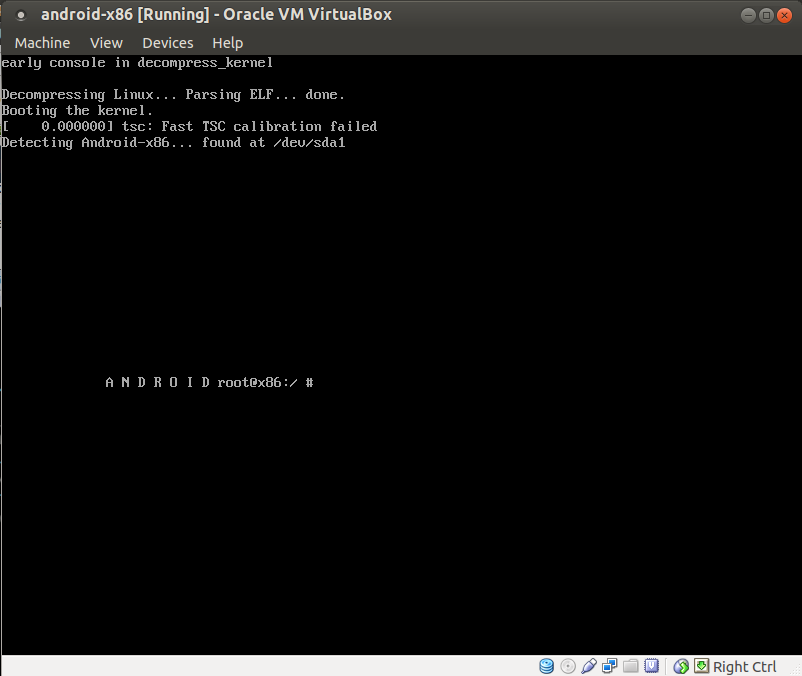
    Here is the snap shot of adding Android on virtual box.


    After Installation is complete, reboot it go to devices > CD/DVD Devices remove disk from virtual drive so as to boot normally inplace of getting booted from ISO.


    Wednesday, 26 June 2013

    "xournal" an excellent pdf editor for UBUNTU

    I was looking for a pdf editor in linux and  found xournal. This is excellent pdf editor and easy to use.
    you can install it by command

    • sudo apt-get install xournal
    After it is installed open the pdf file which you want to edit, after you are done you can also export it into pdf.